
Download CuteFTP – Secure FTP Client for Mac, Free Trial Download
Introduction: Why CuteFTP Still Matters in 2025
In a world where cloud storage dominates, reliable FTP/SFTP tools remain essential for developers, designers, and system administrators who need direct server access. CuteFTP—the long‑standing Mac client from Globalscape—has quietly evolved into a lightweight, secure, and surprisingly intuitive solution for file transfers. Even after more than a decade since its last major update (June 2012), the trial version continues to attract users in the United States, India, and the United Kingdom, clocking over 26,000 downloads since its catalog debut in 2012. The program’s modest system‑footprint makes it a perfect fit for older Mac machines or developers who prefer a focused tool without the bloat of modern “all‑in‑one” suites.
This review explores whether CuteFTP can still hold its own against newer competitors. We’ll look at its core capabilities, ease of installation, platform compatibility, and the real‑world pros and cons that matter to power users. If you’re searching for a free, secure, and straightforward FTP client for macOS, keep reading to discover if CuteFTP deserves a spot on your toolkit.
Overview and Core Features
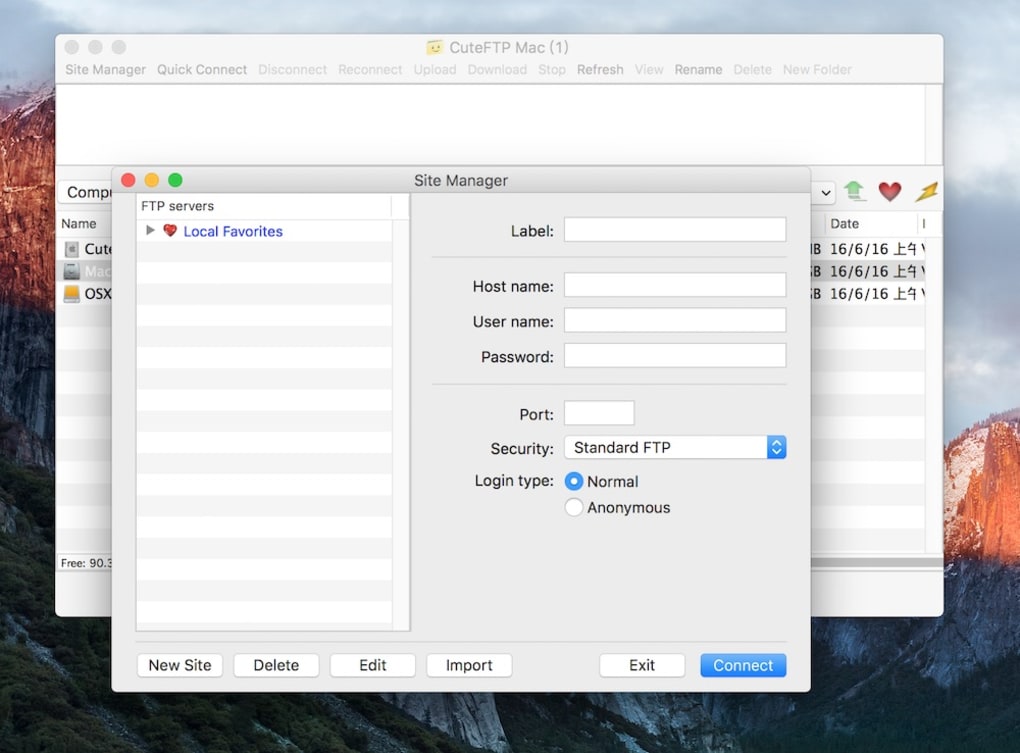
CuteFTP is a trial‑version FTP client designed exclusively for macOS. Built by Globalscape, it supports the classic FTP protocol as well as the more secure FTPS and SFTP variants. Although the interface retains a vintage look, the underlying engine delivers reliable, resumable transfers and a built‑in site manager for storing multiple server profiles. The software’s low storage demand (under 30 MB) makes it ideal for developers who need a fast, on‑the‑go solution without sacrificing security. Its English‑only UI simplifies learning curves, while the trial period lets users evaluate full functionality before deciding on a purchase.
- Support for FTP, FTPS (explicit & implicit), and SFTP protocols.
- Resume‑capable file transfers to recover from interruptions.
- Drag‑and‑drop file management for quick uploads and downloads.
- Site manager with encrypted password storage.
- Built‑in file viewer for text and image preview.
- Configurable transfer queue with prioritization.
- Secure connection logs for compliance auditing.
- Low‑resource footprint, ideal for older Mac hardware.
Installation, First‑Run Setup, and Compatibility
Installing CuteFTP on a Mac is straightforward. Download the .dmg file from a reputable source, double‑click to mount the image, and drag the CuteFTP icon into the Applications folder. macOS may flag the app as coming from an unidentified developer; simply right‑click the icon, choose “Open,” and confirm you want to run it. The installer requires macOS 10.6 (Snow Leopard) or later, which covers virtually all modern Macs, including those running macOS Ventura or Sonoma.
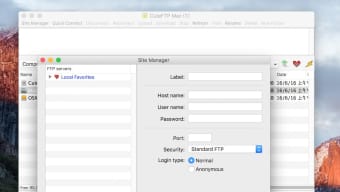
Upon first launch, users are greeted by a brief wizard that helps create a new site profile. Enter the server address, choose the protocol (FTP, FTPS, or SFTP), and provide authentication details. The wizard also offers an optional “Test Connection” button, allowing you to verify credentials before saving. After configuration, the main window presents a classic two‑pane layout: your local file system on the left and the remote server on the right. From here, you can drag files between panes, set transfer modes (binary or ASCII), and schedule automatic retries for failed transfers.
Compatibility is limited to macOS platforms; there is no native Windows, Android, or iOS version of CuteFTP. However, the underlying FTP protocols are universal, so files transferred via CuteFTP can be accessed from any device that supports the same server credentials. Because the software is built for macOS X and later, users with older PowerPC Macs may encounter limitations, but the majority of contemporary hardware runs it without issue.
Pros, Cons, Frequently Asked Questions & Final Verdict
Pros
- Lightweight installation – occupies less than 30 MB of disk space.
- Supports secure FTPS and SFTP protocols out of the box.
- Resumable transfers reduce the risk of data loss during interruptions.
- Simple drag‑and‑drop interface ideal for beginners and power users alike.
- Encrypted site manager keeps credentials safe.
Cons
- Last major update was in 2012, so UI feels dated compared to modern competitors.
- No native support for Windows, Android, or iOS devices.
- Limited language options – English only.
- Missing advanced automation features such as scripting or built‑in synchronization.
- Trial version imposes a time limit; full version requires purchase.
Frequently Asked Questions
Is CuteFTP free to use after the trial period?
The trial version is fully functional for a limited time (usually 30 days). After the trial expires, you must purchase a license to continue using the software without restrictions.
Can CuteFTP handle large files over unstable connections?
Yes. CuteFTP’s resumable transfer engine allows you to pause and resume large uploads or downloads, making it reliable even on flaky internet connections.
Does CuteFTP support automatic synchronization of local and remote folders?
The trial version does not include a built‑in synchronization feature. Users needing automatic sync may have to rely on third‑party scripts or consider alternative FTP clients that offer this capability.
Is the software safe to download from third‑party sites?
Always download CuteFTP from reputable sources or directly from Globalscape’s official site to avoid tampered installers. Verify the digital signature when possible.
What macOS versions are officially supported?
CuteFTP supports macOS 10.6 (Snow Leopard) and later, which includes all current releases such as macOS Ventura and Sonoma.
Conclusion & Call to Action
Despite its age, CuteFTP remains a solid, secure, and lightweight FTP client for macOS users who value simplicity over flashy UI trends. Its support for FTPS and SFTP, combined with resumable transfers, makes it a trustworthy choice for developers, designers, and IT professionals who need a dependable tool without draining system resources. However, if you require cross‑platform compatibility, modern automation, or multilingual support, you may want to explore newer alternatives.
Ready to give CuteFTP a try? $0 – download the free trial today and experience secure file transfers on your Mac. Remember to check the system requirements and back up your credentials before you start.







